Spotify Keeps Pausing? How to Fix Random & 30-Second Pauses
Spotify should keep playing until you pause the music or choose another track. If a song keeps pausing by itself, something is interrupting playback. The cause behind this issue can depend on how often Spotify pauses. If it stops after about 30 seconds, Discord may be responsible, particularly when your Spotify account is connected to Discord or you’re using voice chat.
If Spotify pauses randomly, the problem may be related to another device using your account, Android background settings, another app taking control of the audio, your internet connection, or the Spotify app itself. Below are the fixes for Spotify automatically pausing songs, starting with the 30-second Discord issue and then covering random or repeated pauses.
Why Does Spotify Keep Pausing?
Before changing any settings, notice when the problem happens.
| When Spotify Pauses | Possible Cause |
|---|---|
| Pauses about every 30 seconds | Discord connection or voice chat |
| Pauses across different devices | Spotify account sessions |
| Stops when the screen turns off | Battery/background restrictions |
| Stops after opening another app | Audio or background interference |
| Pauses only with Bluetooth | Bluetooth connection/device |
| Works on mobile data but not Wi-Fi | Network connection |
| Plays one song and then stops | App, account, queue, or cache |
| Official Spotify works but MOD pauses | Installed APK/build |
1. Check Discord for 30-Second Pauses
If Spotify plays for roughly 30 seconds and then stops, check if your Spotify account is connected to Discord. Discord has a Spotify Auto Pause feature. When your microphone continuously transmits for 30 seconds during voice chat while Spotify is playing, Discord can stop Spotify playback. Voice Chat, screen sharing, and Go Live can also be involved.
To disconnect your accounts:
Discord → User Settings → Connections → Spotify → Disconnect
Then close Discord and test Spotify again. If you want to keep the connection, also check if you’re in a Discord voice channel. Push-to-Talk or adjusting voice activity sensitivity so the microphone isn’t constantly active can help with Discord’s auto-pause behavior.
2. Sign Out of Spotify Everywhere
Your account can still be active on another phone, computer, browser, or other device. Open your Spotify account settings and use Sign out everywhere. Then sign back in on the device you’re troubleshooting and test playback before logging into the others again.
Spotify says this option signs you out of its mobile, tablet, desktop, and web player sessions. Some partner devices, including certain TVs, speakers, and game consoles, aren’t covered and may require removing access separately. Spotify
This is also useful when the pausing follows your account across different devices rather than occurring on just one phone or PC.
3. Check Background and Battery Restrictions on Android
If Spotify works while the app is open but stops after you turn off the screen or switch to another app, Android is likely stopping Spotify from running in the background. Open your phone’s app settings and find Spotify under Battery, Background activity, or a similar option. The exact path depends on your Android version and phone brand.
Look at Spotify’s battery settings and make sure it isn’t restricted or put to sleep in the background. You don’t need to turn off battery management for your whole phone. Just change the setting for Spotify.
We also test background playback on the Spotify Premium APK build available on SpotyAPK. In our test, music kept playing after we switched to another app and turned off the screen. If Spotify stops only when you do that, the phone’s background settings are a good place to start.
4. Close Other Apps That Use Audio
If Spotify pauses when you open a game, browser, communication app, or another media app, test Spotify by itself. Close the other apps, play a song, and leave it playing for several minutes. If the problem disappears, reopen your usual apps one at a time.
This is more useful than closing everything and immediately reinstalling Spotify. If playback starts failing as soon as one particular app is opened, you’ve identified a much narrower problem. For Discord specifically, return to the first fix because its Spotify integration has its own playback behavior.
5. Test Another Internet Connection
Internet problems can sometimes cause Spotify to pause. The easiest way to narrow this down is to see if the problem happens on both Wi-Fi and mobile data. If Spotify only pauses on one of them, the connection you’re using at that time is probably behind it.
Downloaded songs give you another way to tell. Since they don’t need an internet connection, a downloaded song that keeps playing normally while you’re offline points away from streaming or Wi-Fi buffering. If that song pauses too, the cause is likely somewhere else.
6. Test Spotify Without Bluetooth
Spotify can pause when there is a problem with a connected Bluetooth device. This can happen with earbuds, headphones, speakers, or car audio. If Spotify plays normally through the phone’s built-in speaker but keeps pausing through Bluetooth, the connected device or Bluetooth connection could be causing it.
The same test can be done with another pair of headphones if one is available. If Spotify keeps pausing through both Bluetooth and the phone’s built-in speaker, Bluetooth is probably not causing the problem.
7. Clear Spotify’s Cache
Spotify keeps temporary data on your device to load songs, images, and other parts of the app faster. Over time, this cache can contain outdated or corrupted data, which can affect normal playback. If Spotify is still pausing after checking the account, connection, background settings, and other apps, the cached data is worth resetting.
You don’t need to remove Spotify for this. Open Spotify’s storage settings and clear the cache only, then reopen the app and continue listening as usual. If corrupted temporary data was causing the interruptions, playback should return to normal.
8. Update or Reinstall Spotify
If Spotify is still pausing after the other checks, the problem can be with the app installation itself. An outdated build can develop compatibility problems, while damaged or incomplete app files can continue causing playback issues even when your account, internet connection, and phone settings are fine.
When a newer version is available, update Spotify and use it normally before making any other changes. If the pausing continues on the latest version, or the problem started after the current installation, reinstall Spotify with a new version.
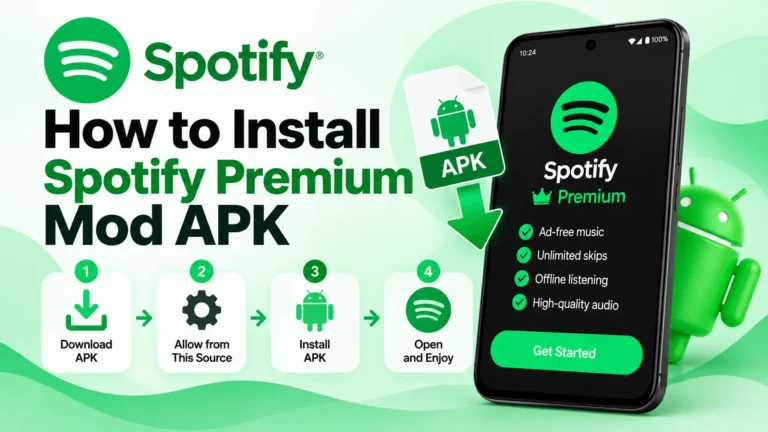
For Android APK users, uninstalling the existing app and installing it again also replaces its existing app files. Our Spotify Premium MOD APK installation shows the installation process from downloading the APK to opening Spotify.
What If Only Spotify MOD Version Keeps Pausing?
A Spotify MOD doesn’t always behave the same as the official app. Since the app has been modified, problems can sometimes be limited to a particular build or its compatibility with the phone.
To check this, play music in the official Spotify app on the same phone and internet connection. Listen long enough to see whether the same pausing problem happens there as well. If Spotify works normally but the MOD continues to stop, the problem is more likely connected to the modified build or its installation.
In that case, check whether you’re using an older build and try the current version. Our Spotify Premium APK page shows the version we currently provide, along with the features and playback behavior we’ve tested on that build.
If the official Spotify app also keeps pausing, changing the MOD probably won’t solve the underlying problem. Go back to the account, Discord, internet connection, background activity, and audio-device fixes covered earlier in this article.
FAQs
Does Spotify pausing mean someone else is using my account?
Spotify can stop playing when your account starts playback on another device, but pausing by itself doesn’t mean someone has gained access to your account. Your own laptop, TV, speaker, another phone, or an old Spotify session can also be involved.
Check which device Spotify is currently playing on and review your account for anything you don’t recognize. If you find an unfamiliar device or login, change your password and sign out everywhere. If your account activity looks normal, continue with the other fixes because the pausing is probably coming from somewhere else.
Will reinstalling Spotify remove downloaded songs?
Yes, music downloaded for offline listening is stored as part of Spotify’s local app data. Removing Spotify also removes those downloaded files from that device, so you’ll need to download them again after reinstalling the app.
Your playlists and songs saved to your Spotify account are different. They remain attached to the account, so signing back into the same account restores your library, but not the offline copies that were stored on the phone.
Can low phone storage affect Spotify?
Spotify needs free storage for its cache, downloaded music, temporary files, and other app data. When a phone is almost completely full, the app has less room to manage those files normally.
Check your available storage if Spotify has started pausing alongside other problems such as failed downloads, slow loading, or general app instability. Delete files or apps you no longer need, restart Spotify, and see whether playback improves after some storage has been freed.