Spotify Premium APK Not Installing? 8 Ways to Fix It
If you have downloaded the Spotify APK file but cannot install it, there could be several reasons why it’s not installing on your device. For example, Android can show “App not installed,” cancel the installation after you tap Install, or display a Play Protect warning.
The APK can also get blocked by the browser or fail when opened from File Manager. This guide covers these installation errors one by one and shows what to check before trying to install the APK again.
Why Won’t the Spotify APK Install?
Spotify APK can fail to install when Android blocks the installation, the downloaded file has a problem, or the APK is not compatible with your device. Common causes include:
- Install unknown apps permission is disabled
- Google Play Protect blocks or warns about the APK
- Your browser blocks or removes the downloaded file
- Browser and File Manager have different installation permissions
- The official Spotify app conflicts with the MOD version
- The APK download is incomplete or corrupted
- Your Android version is not supported
- The APK uses an incompatible architecture or package type
- Your device does not have enough free storage
Why Is Spotify Premium APK Not Installing?
1. Allow APK Installation from Your Browser or File Manager
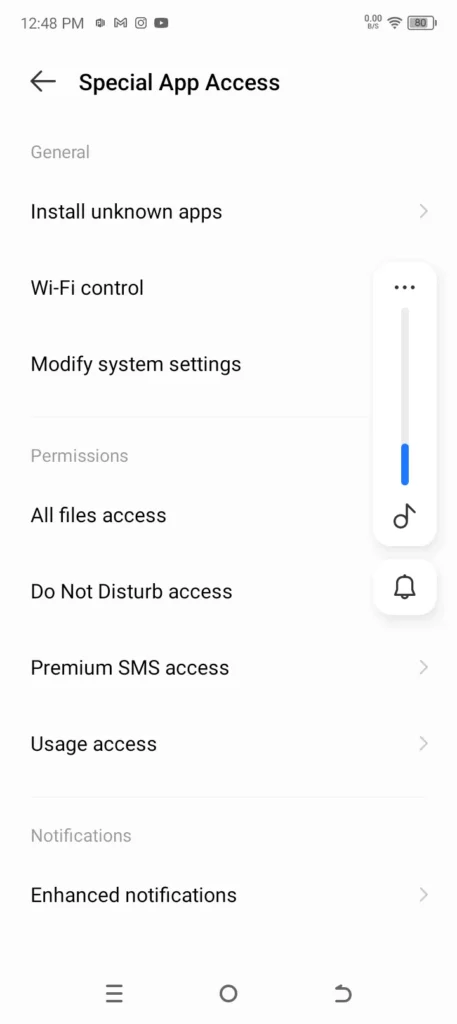
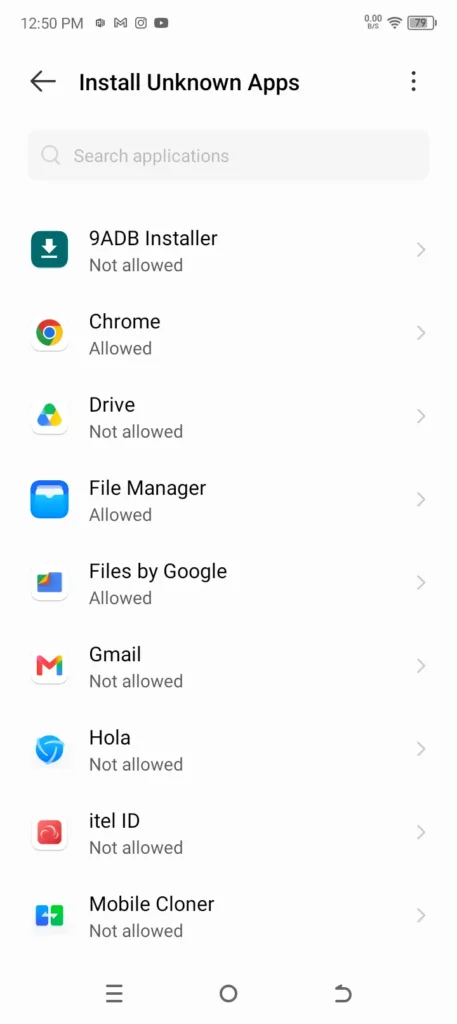
Android controls APK installation permission separately for each app. If you downloaded the Spotify Premium APK with Chrome but opened it later from File Manager, both apps can have different installation permissions.
Go to:
Settings → Apps → Special app access → Install unknown apps
Select the app you are using to open the APK, such as Chrome, another browser, or File Manager, and turn on Allow from this source. Then open the Spotify APK again and retry the installation.
The exact menu name and location can differ on Samsung, Vivo, Xiaomi, and other Android phones, but look for a setting named Install unknown apps or Unknown app installation.
2. Check the Google Play Protect Warning
Google Play Protect can scan APK files installed outside the Play Store. When you try to install the Spotify APK, it can show a security warning, ask you to scan the file, or block the installation. Read the exact warning before continuing. A Play Protect alert should not automatically be treated as a false positive just because the app is a MOD.
If the scan reports unexpected security detections or identifies potentially harmful behavior, do not install the APK until you can verify the file and its download source. There is no need to permanently disable Play Protect just to install an APK.
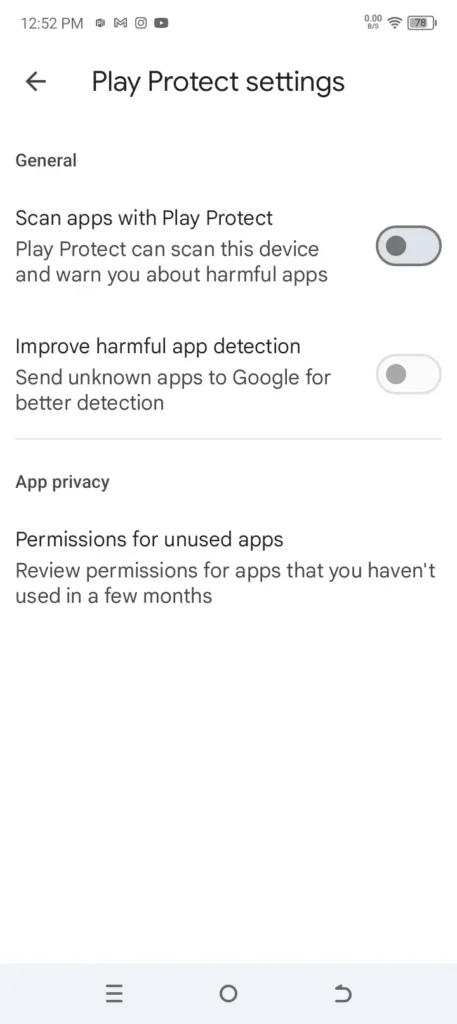
However, if it is blocking the app from being installed, go to the Play Store > Profile > Play Protect and turn off both Scan apps with Play Protect and Improve harmful app detection. Once the APK is installed, turn both options back on.
3. Check If Your Browser Blocked or Removed the APK
Browsers can sometimes block an APK before it finishes downloading or remove the file after the download is complete. We have also seen cases where the browser shows the download as completed, but the APK file is automatically deleted.
Open your browser → Downloads and check the download status. You can also open the Downloads folder in File Manager to confirm that the APK is actually saved on your phone. If the browser shows a security warning or says the file is dangerous, click Keep to keep the file.
If the downloaded APK file is automatically removed, follow these steps:
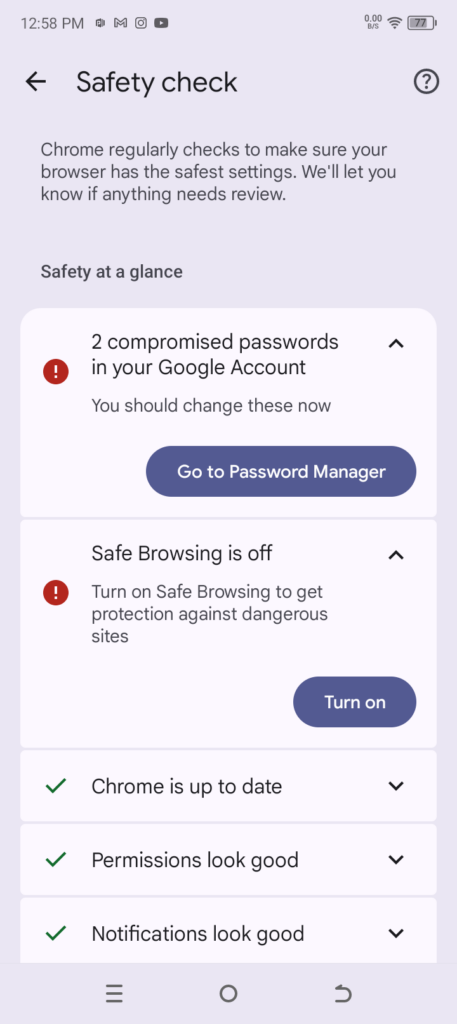
Click the three-dot icon → Settings, scroll down slightly, and find Safety Check. Open it and find the Safe Browsing option. If it is enabled, turn it off temporarily. Once the APK has been downloaded successfully, turn Safe Browsing back on.
4. Try Installing the APK Directly from Your Browser
If the APK fails when opened from File Manager, install same file directly from your browser. We encountered a MOD APK that downloaded correctly and showed the normal Android installation screen when opened through File Manager, but pressing Install immediately cancelled the process.
Opening the same downloaded file from the browser worked:
- Open the browser you used to download the APK.
- Go to Downloads.
- Find the downloaded Spotify APK.
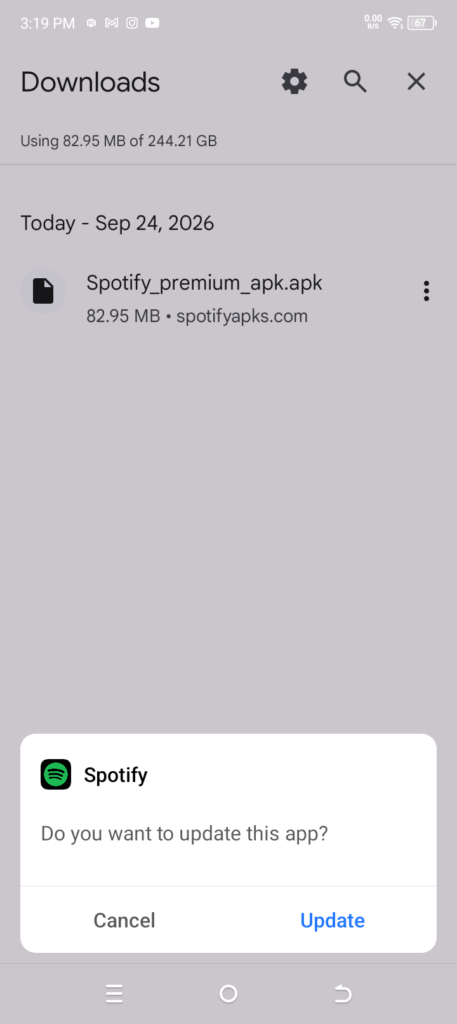
- Tap the APK directly from the download list.
- Press Install again.
Android manages installation permission separately for different apps, so also check that Install unknown apps is allowed for the browser. Permission given to File Manager does not automatically apply to the browser, and vice versa.
5. Remove the Existing Spotify Installation
If Spotify is already installed on your phone, it can conflict with the MOD APK. Android checks the app package and signing certificate when installing an update. If the existing Spotify app and the downloaded APK use different signatures, Android can refuse to install the new file over the current app.
Try these steps:
- Check if Spotify is already installed.
- Back up anything important if needed.
- Uninstall the existing Spotify app.
- Open the downloaded APK and try installing it again.
This can fix a signature conflict, but other installation problems can also cause the “App not installed” error.
6. Delete the APK and Download It Again
An APK that was not downloaded completely or became corrupted can fail during installation. Delete the current file and download a fresh copy from the spotyapk.com’s main page before trying again.
If file details are provided, compare the new download with the listed version, file size, and package information. You can also verify the checksum or file hash when one is available. A different file size or checksum can indicate that the downloaded file is incomplete or has been changed.
FAQs
Why does the Spotify APK say “App not installed”?
This error can appear when the APK conflicts with an existing Spotify installation, the download is incomplete or damaged, or the file is not compatible with your Android version or device architecture. Check the file details and existing Spotify installation before downloading another build.
Why does the APK install from my browser but not File Manager?
Android gives Install unknown apps permission separately to each app. We have encountered APKs that failed when opened through File Manager but installed successfully from the browser’s Downloads list. Check the installation permission for both apps.
Why did my browser remove the downloaded APK?
Browsers have security and download-protection features that can block or remove APK files they consider risky. To fix this problem, check the warning shown by your browser before downloading the file again, rather than assuming it was blocked incorrectly.
Can Google Play Protect stop a MOD APK from installing?
Yes. Google Play Protect scans apps installed outside Google Play and can warn about or block an APK it considers potentially harmful. If a warning appears during installation, read the specific warning and verify the file before deciding whether to continue.
Do I need to uninstall official Spotify first?
Not always. If the official app and MOD use the same package name but are signed with different certificates, Android can refuse to install one over the other. In that situation, uninstalling the existing Spotify app before installing the MOD can resolve the conflict.